Editorial Management
User Guide for Editors
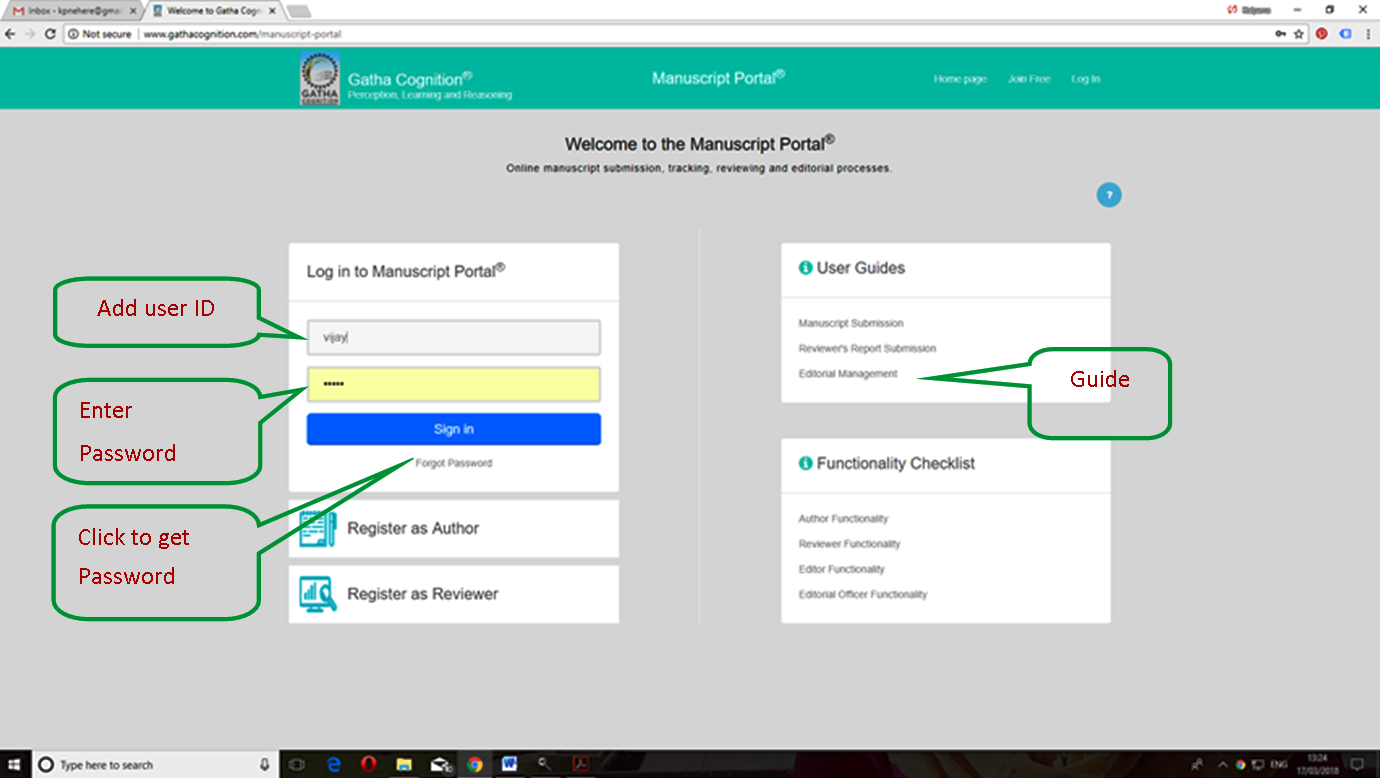
Login at ‘Manuscript Portal’
- Link: http://www.gathacognition.com/manuscript-portal
- Login details: Use your registered ‘User ID’ and ‘Password’ for login.
- Recover password using, ‘Forgot Password’.
- User guide is available at the link, Editorial Management from User Guide.
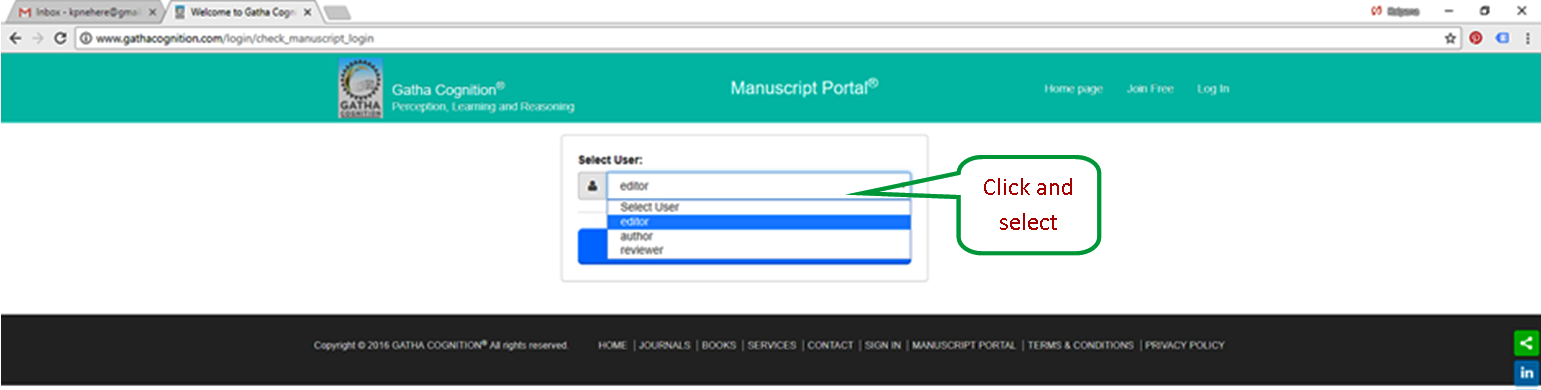
Select option
- Click in the box.
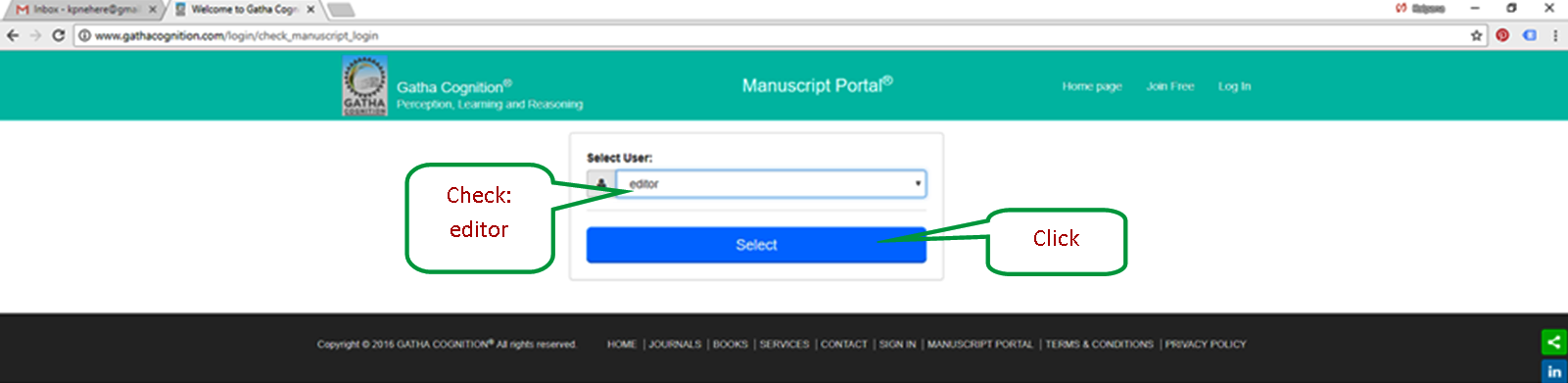
- Select the 'Editor' option from the dropdown.
- Click on ‘select’.
Call for Editor
- New manuscript(s) appear in the tab 'Call for Editor'.
- Click on ‘Accept’ for accepting the manuscript for editorial processing.
- The Associate Editor and member(s) of the Editorial Board can decline the manuscript by clicking the tab 'Decline'.
- The Editor-in-Chief should accept the manuscript and assign the Editor from the Editorial Board for expert assessment if required instead of declining.
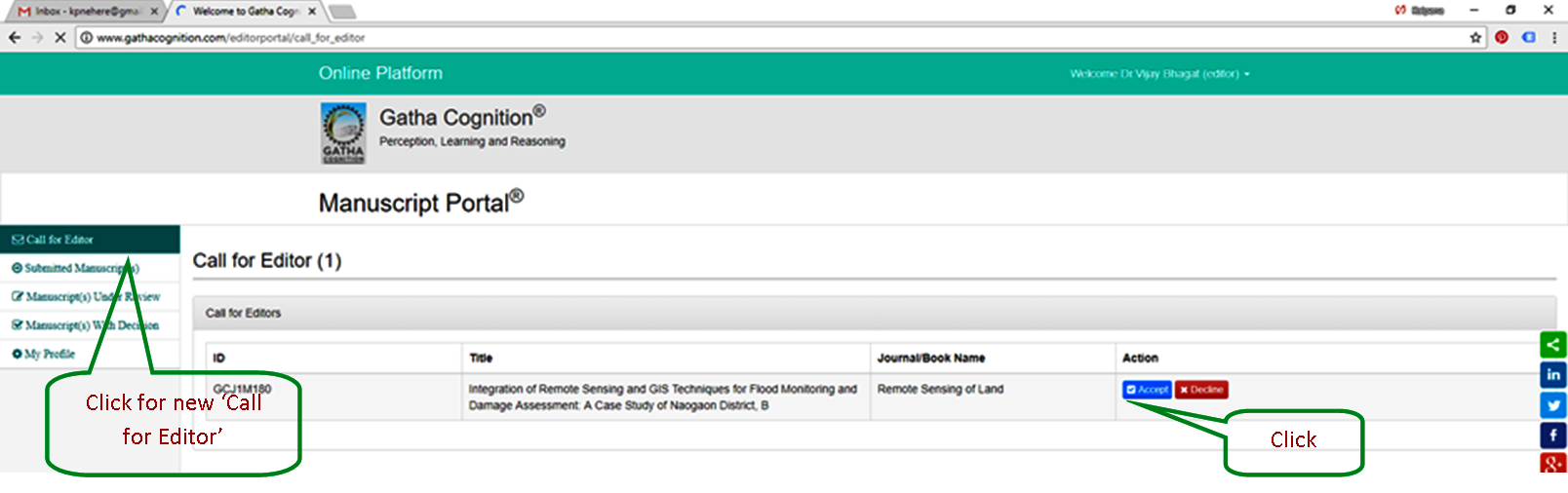
Manuscript(s) Accepted for Editorial Processing
- Accepted manuscript(s) by the Editors appear in the tab ‘Submitted Manuscript(s)’.
- Click on ‘view’ for editorial process.
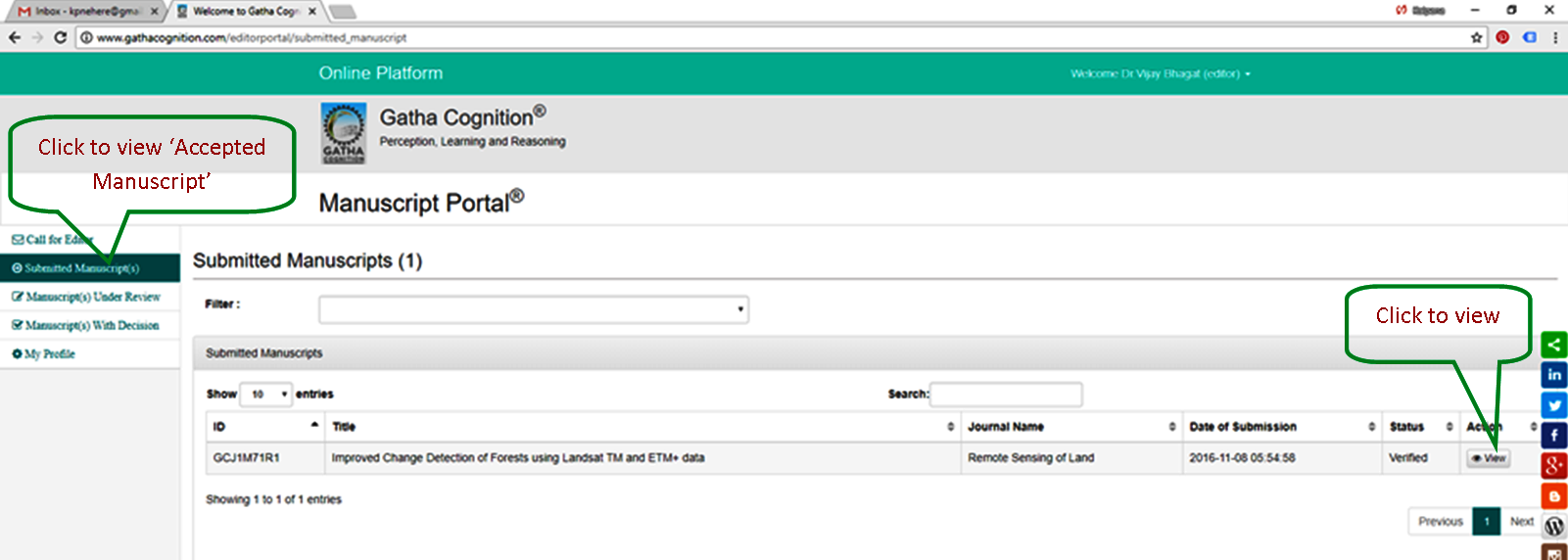
Editorial Process
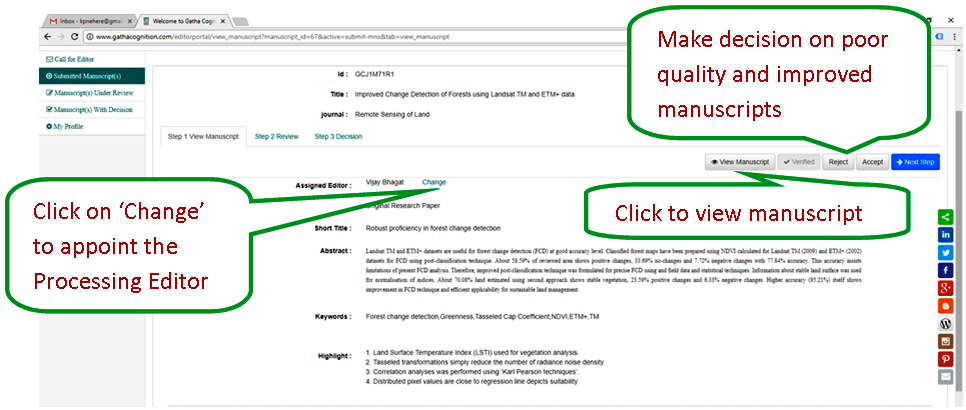
Editorial processing has three steps: Step-1 View manuscript, Step-2 Review, and Step-3 Decision.
Step – 1 View manuscript
- View Manuscript, make a primary decision (reject a poor-quality manuscript, or accept it for improvement after revisions) before the review by experts.
- Click on 'change' to update the appointment of the Processing Editor.
Step – 2 Review
- Click on 'Step-2 Review' for appointment of reviewers.
- Appointment of ‘Panel of Reviewers’ (three).
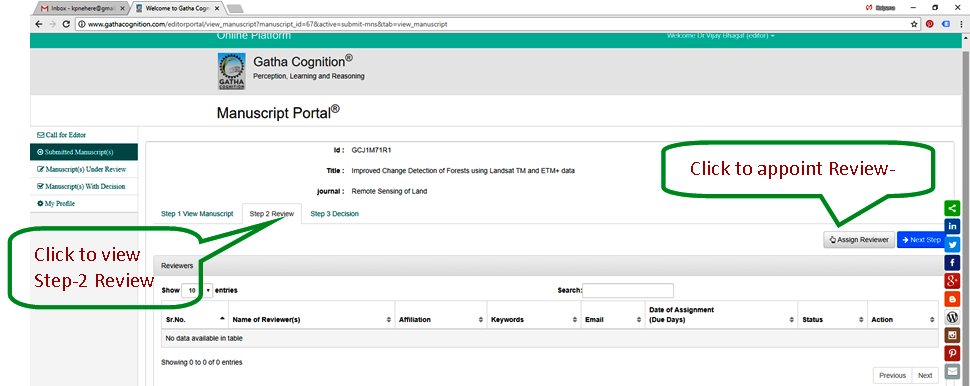
Appointment of Reviewers
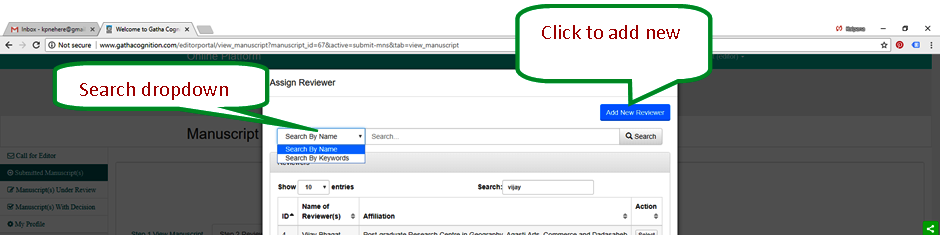
- Add new reviewer.
- Search reviewer: 1) by name, 2) by keywords, and 3) direct search.
- Select reviewer from the list.
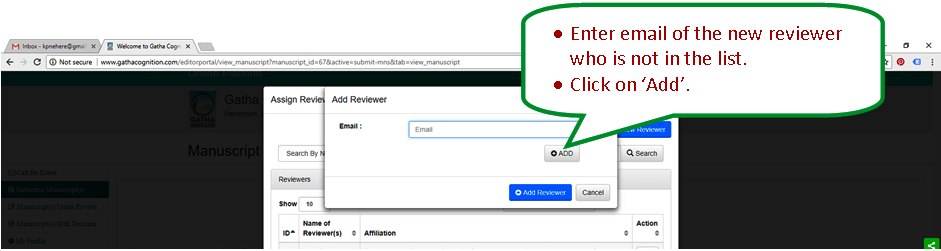
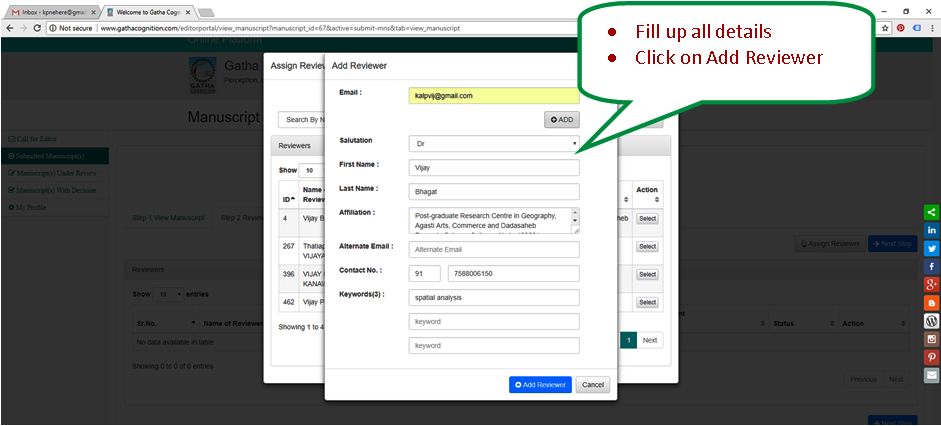
- Add new reviewer to the list.
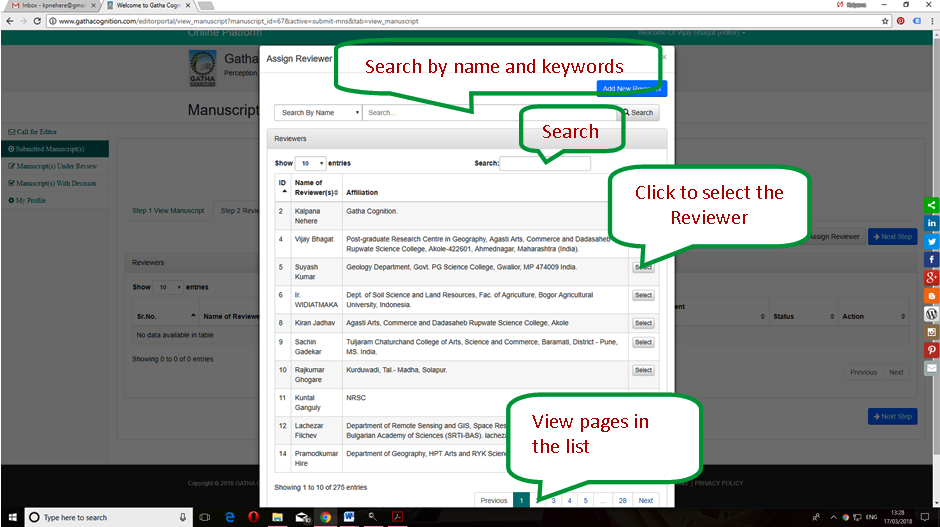
- Search reviewer from the list
- Add new reviewer
- Add email address of new reviewer
- Filling information of new reviewer
- Select reviewer newly added to the list
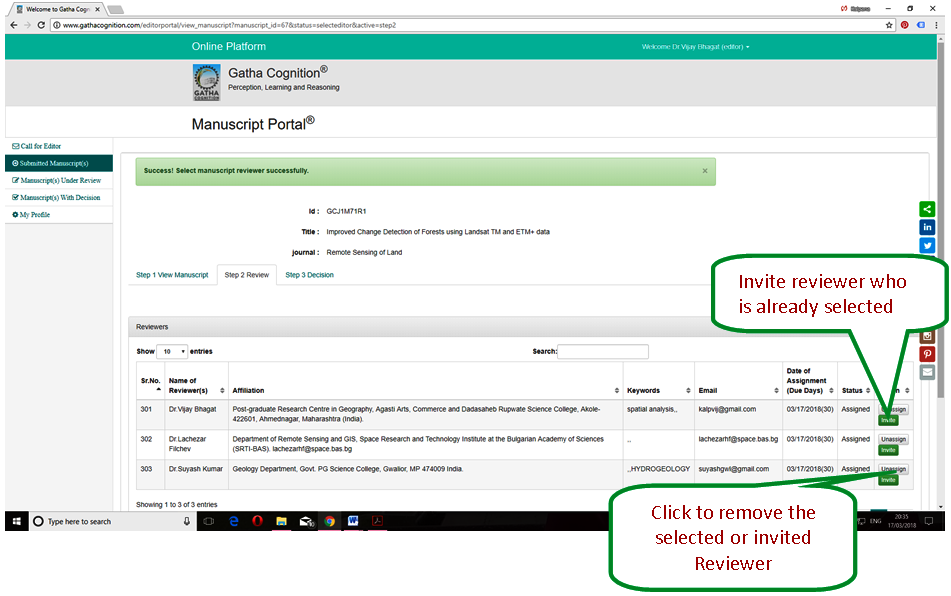
- Invite the reviewer
- Remove the reviewer from selection or invite (if required)
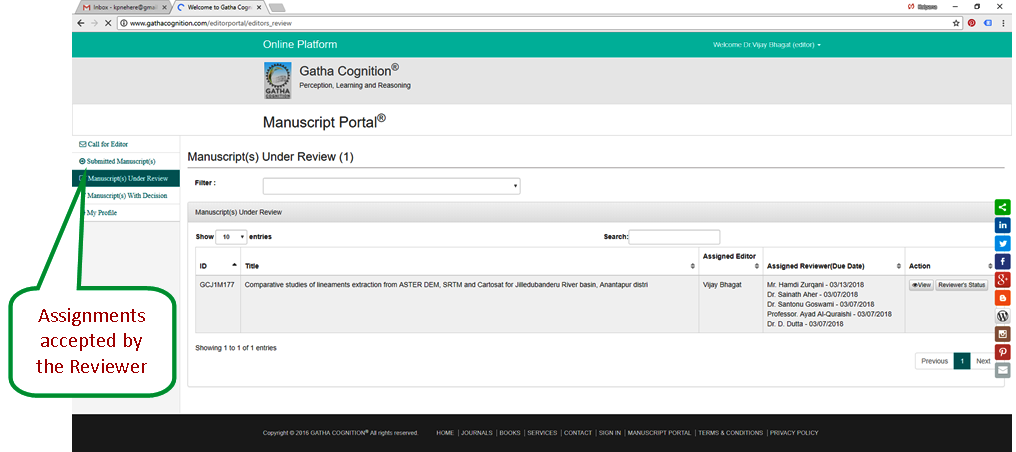
- Accepted manuscript by the reviewer to review
Step -3 Decision
- Click on 'Step-3 Decision'
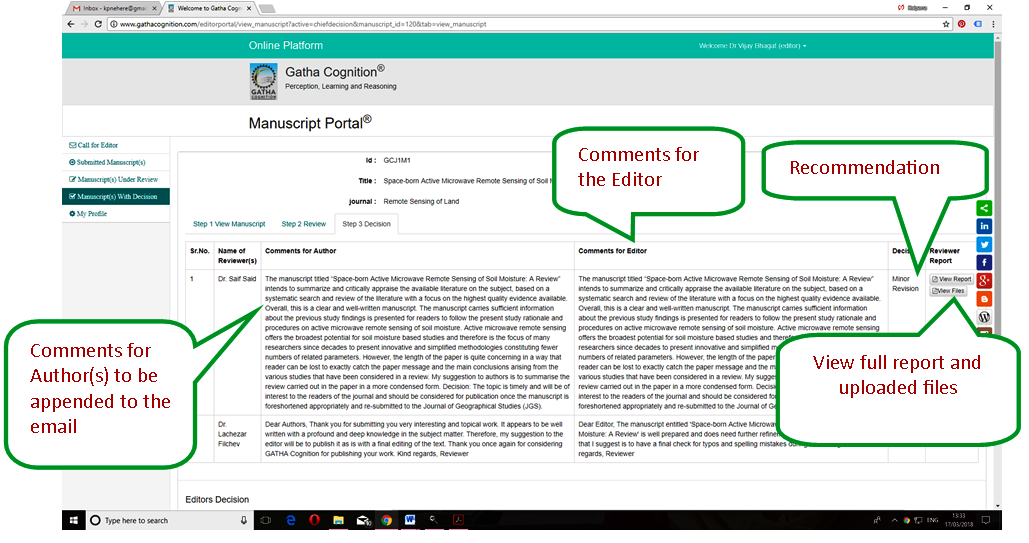
- View the comments, recommendation, full report and uploaded files by the reviewers.
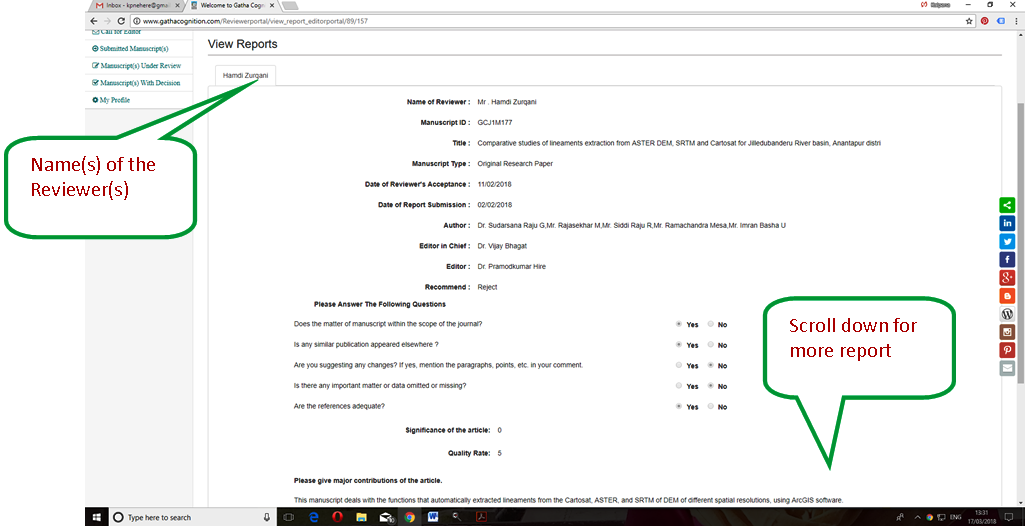
- View full report of reviewer
- Make decision on manuscript (minimum two reports required)
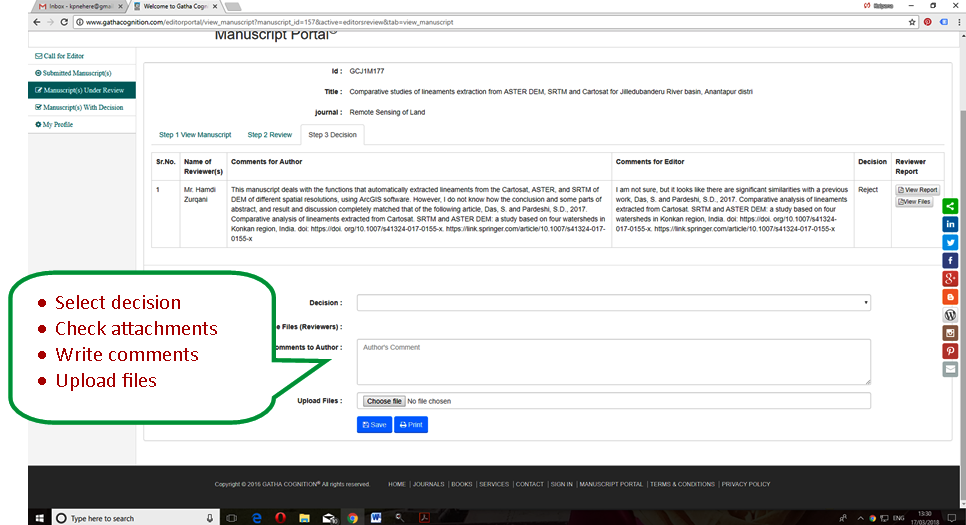
- Select the decision: 1) Accept, 2) Minor revision, 3) Major revision and 4) Reject
- Click on dropdown
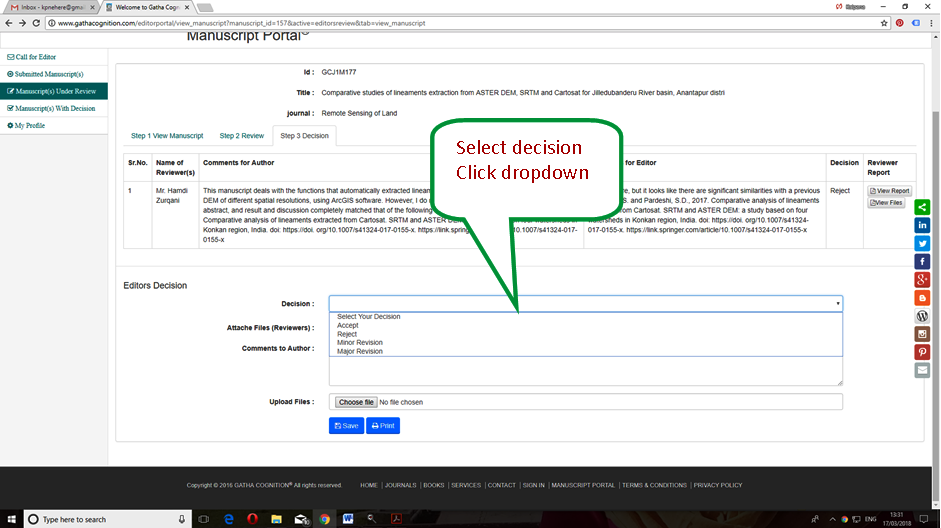
- Check attachment from reviewers
- Write comments for author(s)
- Upload files for reviewers (other than files from reviewers)
-
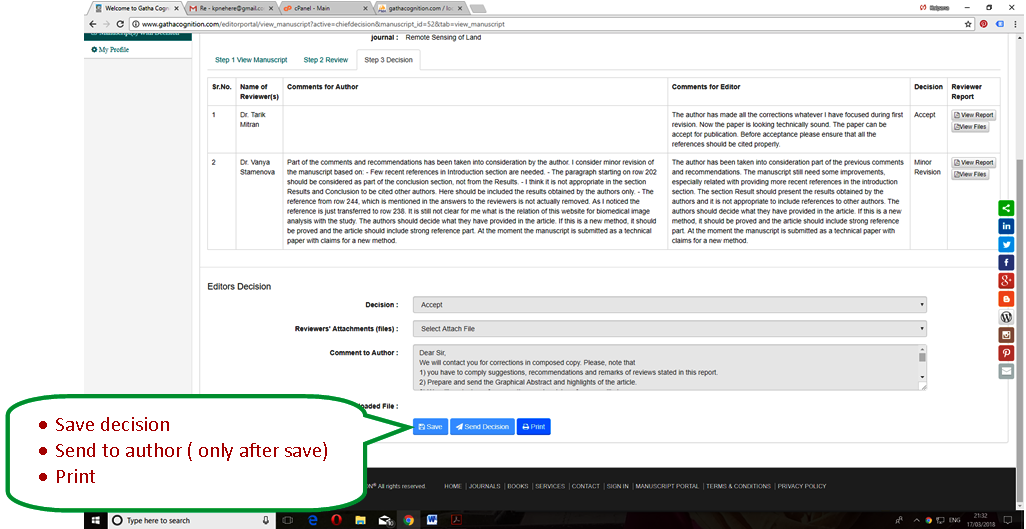
Save and Send the Decision to the Author
- Save the progress of decision
- Send decision to the author (only after save)
- Print decision, if required.
Scholar Profile
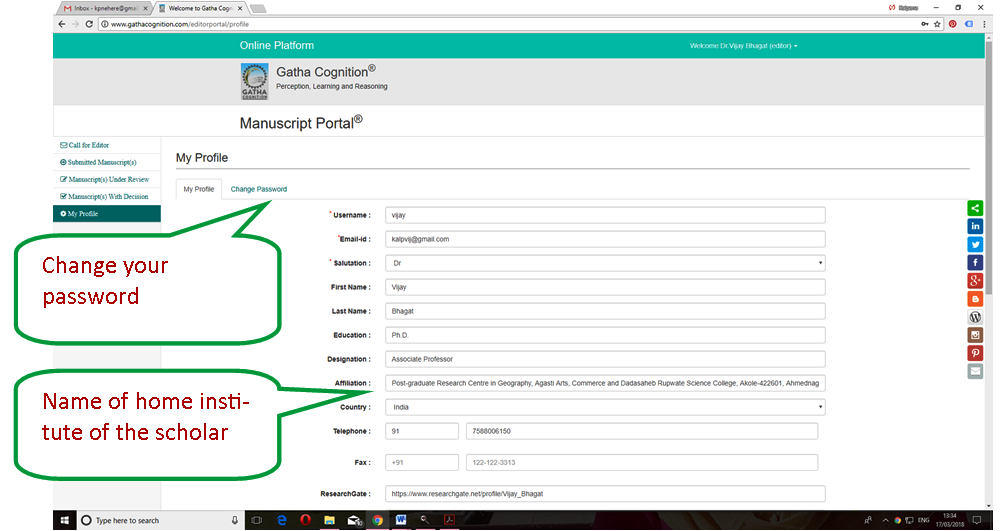
- Change your password, if required.
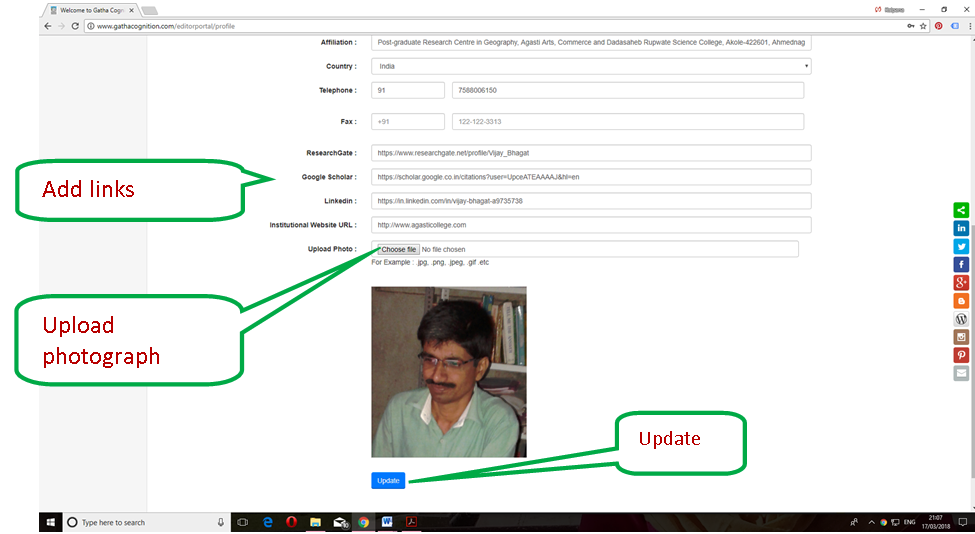
- Update all details.
- Add or update name of your home institute.
- Add links to homepage (website) of your institute.
- Add links to your profiles at ResearchGate, Google Scholar and LinkedIn.
- Upload your profile picture
- Click ‘Update’.